Installation
Before we begin, please ensure that you have a backup of your data before proceeding with the installation of the extension. This is because although we will do our best to support you, we cannot take responsibility for any data loss that might occur during the installation of this extension.
Installation steps - Weaviate with Docker:
- SSH to your server.
- Install docker and docker compose on your server.
- Create a directory where the docker compose project will sit. For example /root/docker
- Go to https://github.com/mexbs/ai-search-extension-weaviate-integration and clone the repo into /root/docker
- Go to /root/docker/ai-search-extension-weaviate-integration and run:
docker compose up --build -d
That will start the Weaviate (AI search engine), and the NodeJS server. To make sure that it started run:
docker ps
If it says that the image is restarting or has an error, you can run:
docker logs <container name>
Installation steps - Magento extension:
If you purchased the extension via mexbs.com:
- Connect via SSH and go to your Magento root directory
- Unzip Mexbs_AISearch_v1.1.zip and upload the app directory from the zip into your Magento root directory. Proceed to step 3 in "Common installation steps".
If you purchased the extension via Magento Marketplace:
- In your Magento root directory run:
composer require mexbs/ai-search-engine:1.1.0
composer require mexbs/ai-search:1.1.0
Proceed to step 3 in "Common installation steps".
Common installation steps:
- Determine the mode that your Magento is running on, by running the following command:
php bin/magento deploy:mode:show
- If you are in developer or default mode, run the following commands:
php bin/magento module:enable Mexbs_AISearch Mexbs_AISearchEngine --clear-static-content
php bin/magento setup:upgrade
- Run:
php bin/magento setup:static-content:deploy -f
- If you are in production mode, run the following commands:
php bin/magento module:enable Mexbs_AISearch Mexbs_AISearchEngine --clear-static-content
php bin/magento setup:upgrade
php bin/magento setup:di:compile
php bin/magento setup:static-content:deploy
- Go to the admin panel – Stores->Configuration->General->AI Search Settings” and set "Enable AI Search" to "Yes", "Search Server Address" to "http://localhost:5000". Save the settings.
- Go to Stores->Configuration->Catalog->Catalog->Catalog Search and set "Search Engine" to "AISearchEngine". Keep the other setting the same as before ("AISearchEngine Server Hostname" to "localhost", "AISearchEngine Server Port" to "9200", "AISearchEngine Index Prefix" to "magento2", "Enable AISearchEngine HTTP Auth" to "No", and "AISearchEngine Server Timeout" to "15").
- Go to the admin panel – “System->Cache Management” and click “Flush Magento Cache”.
- Make sure that you have Open search or Elastic search enabled and running (The extension code is based on the Magento Elasticsearch library, which can be using either Open search or Elastic search server).
- Run the reindex command in your SSH:
php bin/magento indexer:reindex
- Run the following command in your SSH:
bin/magento ai-search:index
You should get an output similar to the following:
Clearing existing index...
Response: {"message":"index cleared","status":"ok"}
Indexed 50 products (page 1 out of 4)
Indexed 50 products (page 2 out of 4)
Indexed 50 products (page 3 out of 4)
Indexed 30 products (page 4 out of 4)
All products indexed successfully.
- Go to the admin panel – “System->Cache Management” and click “Flush Magento Cache”.
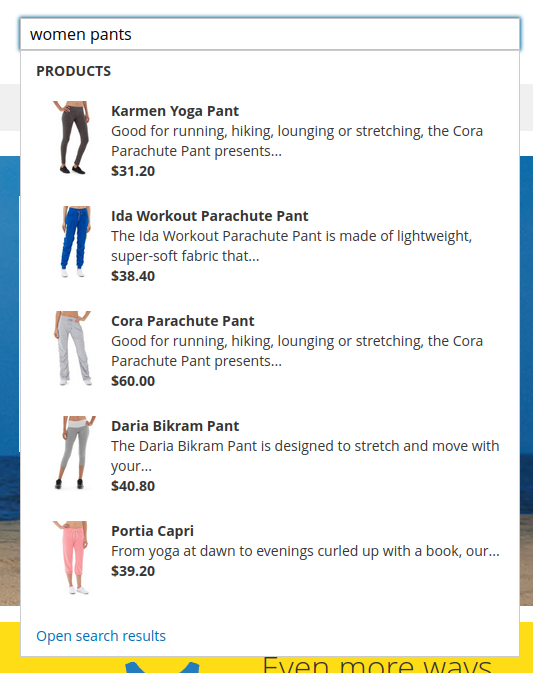
- Now, try going to any page in your website and try typing a search term in the search box. You should see the following: